List
Shows related items.
- You have simple pieces of information that are related or have a similar structure.
- You have more complex, tabular information—use a table.
- There are choices connected to the information—use checkboxes or radio buttons to enable interaction.
- You have complex structures with choices— use list choices.
 |  |  |  |  |
|---|---|---|---|---|
Released | Released | n/a | n/a | Released |
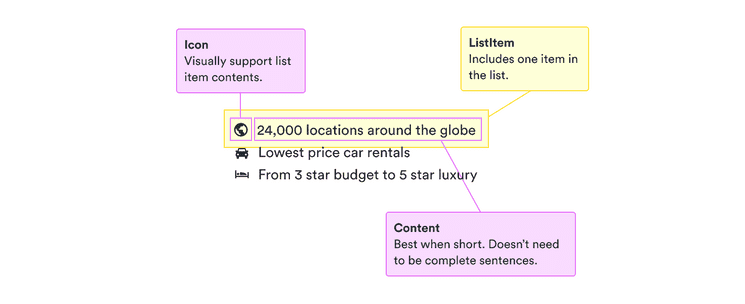
The list component presents information as unstructured lists. Don’t use it when the order of the items matters, such as a list of steps in a process. Instead, use an ordered list.
Lists are good at making more complex information easy to scan. This works well when you have multiple items with similar information.
They aren’t designed to emphasize details. So don’t use them when you only have one item to set off from surrounding text.
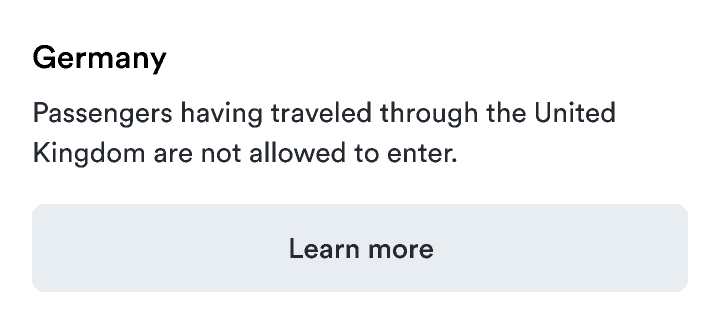
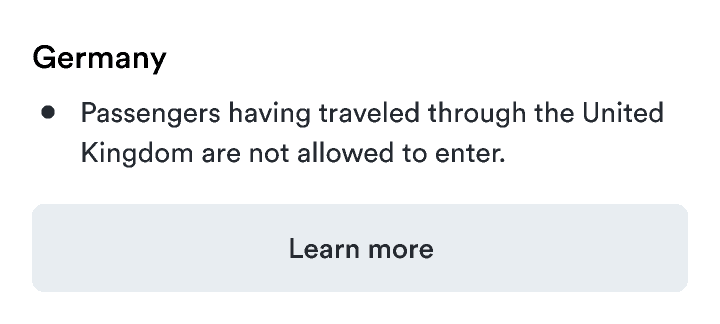
Similarly, while lists provide a visual break, they shouldn’t be used just to break up long paragraphs. If you don’t have information that can be broken into similar pieces, break long paragraphs into shorter ones but don’t use a list.
Each item in the list should be phrased in a similar way. This consistency helps users scan to find the information they need. Varying the structure makes it harder to understand.
Icons can help add emotion to your lists, such as checks in colorTextSuccess when listing features. They can also make details easier to scan, such as the icons in the content structure.
But too many different icons can draw too much attention and overwhelm users. Only use them if they provide clear value and don’t distract too much from important actions.